01
Open the map
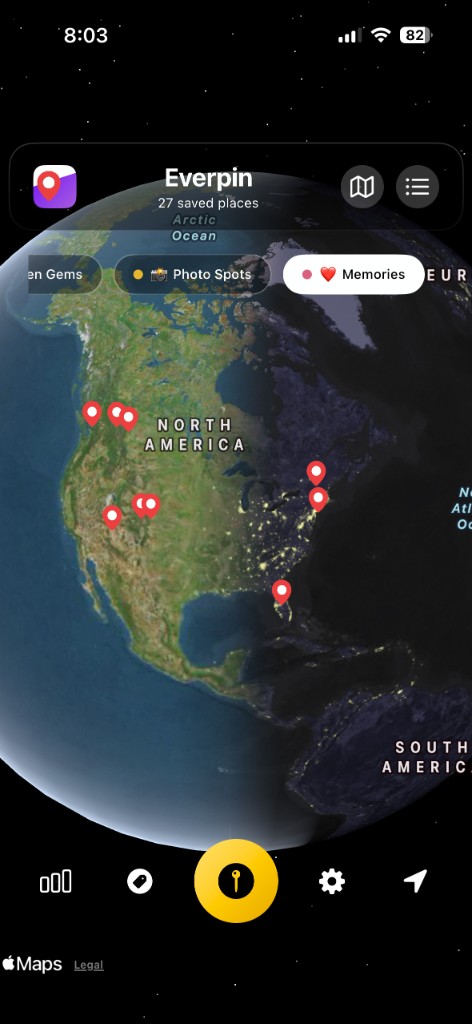
Install Everpin and open it. The first screen is a globe. The next time you open the map, it comes back flat, on the area you were looking at.
 Everpin
Get the app →
Everpin
Get the app →
Six steps from an empty map to a record of the places, cities, and countries you've visited.
01
Install Everpin and open it. The first screen is a globe. The next time you open the map, it comes back flat, on the area you were looking at.
02
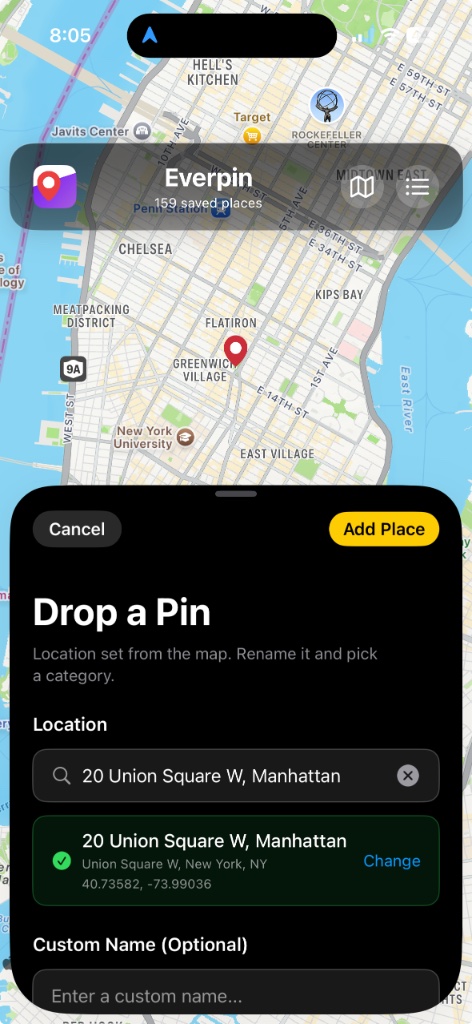
Press and hold the map. The place card opens halfway, so you can still see the map and the new pin. The address fills in on that first drop. Give the place a name and a list. Tap the address or the coordinates if you want to copy them.
03
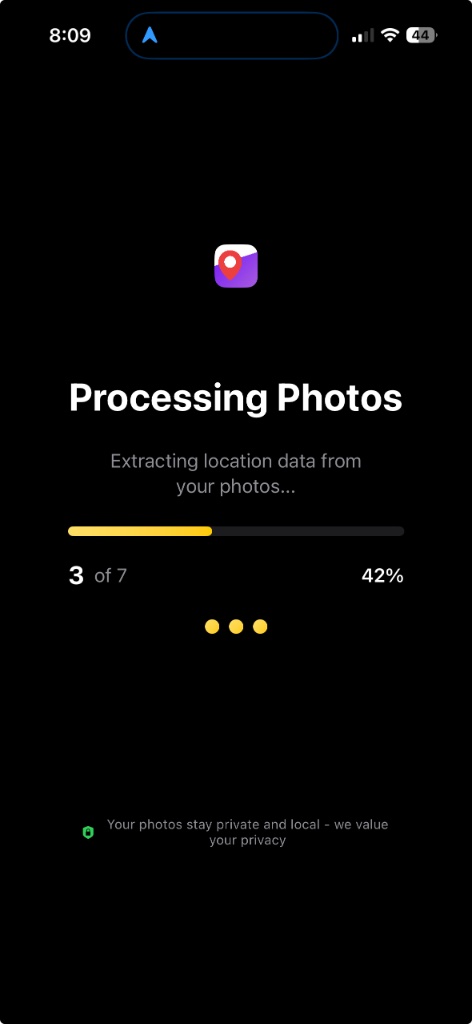
Tap the pin button and choose Import from Photo. Everpin reads the location on each picture and adds a pin for it, with the photo, the date, and the city. A photo without a location is skipped. You can also pin where you are standing, or search for a place.
04
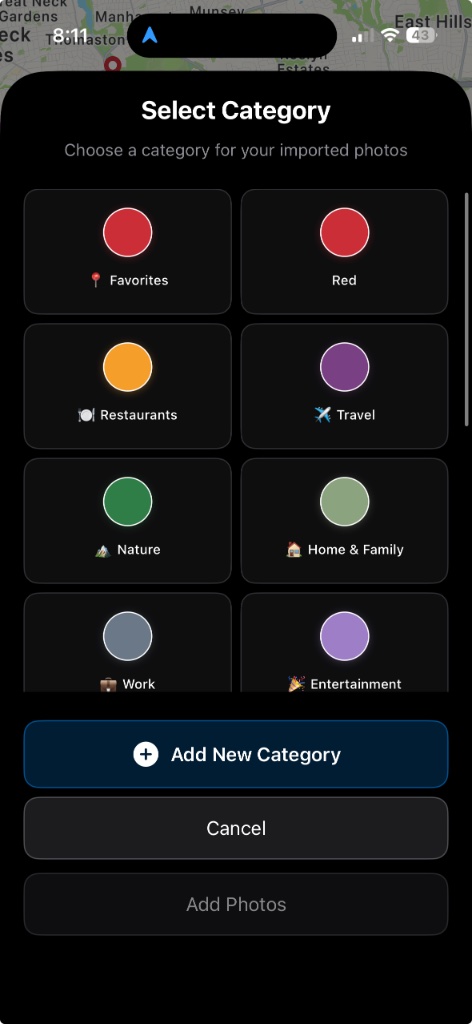
When you drop a pin or import photos, choose a category such as Travel or Nature. Add New Category if you want your own list. Give it a name and a color, and the pins in that list use that color.
05
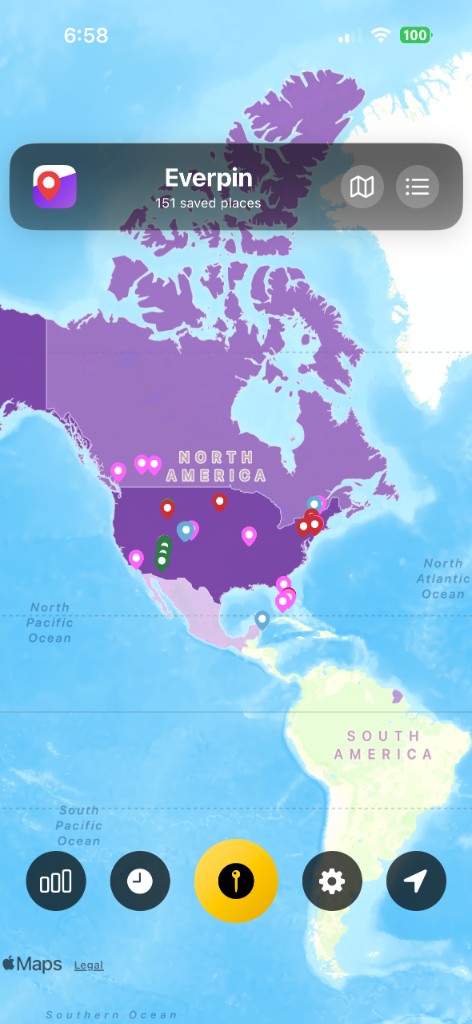
Open the map menu and turn on the country heatmap. Each country you've pinned takes color. More places in a country means a deeper color, and you can change that color.
06
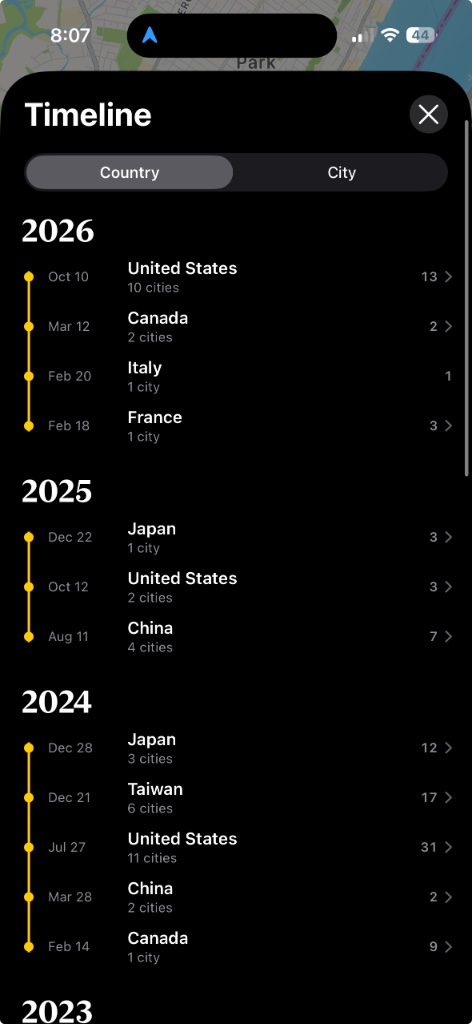
The clock opens the timeline. Country is the default grouping, and visits in the same city within a week sit together. The chart counts countries, cities, places, and what you added last.
No. The journal is on your iPhone. If you are signed in to iCloud, it syncs in your private iCloud. Leave Everpin open on the other device and the places show up there. You do not have to tap Sync Now.
Import only keeps photos that already have a location. A screenshot or a picture saved from the web usually has none, so Everpin skips it. You can still drop a pin and attach that photo by hand.
No. The browser map lives in that browser, and the link is how you share it. The private journal, the photos, and iCloud sync are in the iPhone app.
The rest of the app is on the features page: lists, Street View, nearby pins, and the globe.
One place is enough. The map grows from there.
Download on the App Store